
Infinet

Need To Refresh Your Accounting Software?

Here’s Some Up-to-Date Info That Should Be of “Interest”!

Accounting Software

Accounting software is much-needed tool today. Gone are the days of manually writing down copious amounts of figures in heavy, dusty logbooks, or using calculators to add up debits and credits. Our computers do this for us now. Accounting software makes the process of bookkeeping more efficient and accurate.

What else is different than in years past? Today’s newest accounting solutions are now cloud-based, and they provide many advantages.

No more shelling out a large amount of cash to purchase expensive business accounting software. Instead, you can pay for a web-based accounting service via a convenient subscription.

Online accounting services are used via the Internet rather than being installed on your organization’s computers. They allow you to access the information you need through an Internet browser like Internet Explorer, Firefox, Chrome or Safari. You can access the service from anywhere you have an internet connection, and it will always look like the same wherever you use it.

Plus, you won’t have to worry about technology requirements, if you have the right operating system, backing up your accounting data, installing updates or dealing with maintenance issues. You get all this and more handled for you–And all for a convenient monthly or annual fee.

Just like any accounting software, cloud-based accounting services allow you to perform all the accounting tasks your business needs, and they include features you’re familiar with like an online general ledger, invoicing and accounts receivable capabilities, purchase histories, business inventories and much more.

And, because upgrades and data backup are managed by the accounting service vendor, cloud-based accounting services are an attractive option for small businesses.

Although these new solutions are cloud-based, you can still buy desktop accounting software if you wish. But due to their popularity, most small businesses are now using online accounting services. Because of their anywhere availability via the Internet, crunching numbers is now much easier than ever before.

What Do Online the Different Accounting Services Have in Common?

Each solution is different, but they all have the following features in common.

They are available via a subscription. Accounting software has always been expensive and needs to be updated every year. With the online version, you pay for only as many users as you need, and you can pay on a monthly or annual basis. Many offer a free trial that converts when you sign up for a service. They cost anywhere from $5 to $70 a month depending on what you require. You won’t be locked into a contract, and all the upgrades are provided. Another plus is that your data will automatically be backed up to a secure cloud.

They’re easy to navigate. Online accounting services try to make your job less taxing with intuitive, easy-to-navigate platforms where you can easily find the features you want. Toolbars, drop-down lists, fill-in-the-blank fields, buttons and icons, all help you enter the numbers for whatever calculations and financial forms you require.

They use language that you’re familiar with. Although we still refer to terms like credits, debits, and chart of accounts, online accounting solutions only use arcane financial language when absolutely needed. The developers are trying to use every-day language whenever possible. However, although centuries old, double-entry accounting is a process we all need to use, and it’s here to stay, the developers let the “wizards” handle the complex processes behind the scenes.

They provide mobile versions. If you’re on the road, traveling for business meetings, or even need to do a little work when you’re on vacation, you can access your web-based accounting services securely from your mobile devices.

You have the choice of different levels of service. Some of the best cloud-based accounting solutions provide more than one level of service at different prices. This way you can purchase just what you need and nothing more. If you need to switch to a different level, most allow you to do this easily.

You can integrate them with other solutions. As your business grows, you may find that you need to use a variety of cloud-based financial management solutions. In this case, many of the best cloud-based accounting solutions allow you to connect to other services that you may already be using.

Dashboards. Interactive home pages or dashboards will help you keep track of your finances by flagging tasks that need attention and providing visuals like graphs and charts to give you a high-level view of where you stand. They summarize data like income, expenses and cash flow in easy-to-read images, so you and your team can more easily comprehend data and can make decisions about what to do.

Which Solution is the Best for Your Business?

So, how do you decide which online accounting solution is best for your small business? You might not be able to find a perfect match, but because they are flexible and provided on a monthly basis, you can find the best one for you and tweak it along the way.

As mentioned, many offer a free trial, so you can “road test” them. Give them a try and consider the following questions when you do:

  • Can you import your existing data?
  • Are the tasks you perform most often supported? (recordkeeping, billing, purchasing, etc.)
  • Do you like the interface? Is it easy to navigate?
  • Will it support the number of users you need?
  • Are there any restrictions on actions you’ll need to take?
  • Is it customizable?
  • Is it scalable?
  • What is the quality of the mobile application?
  • Are add-ons supported?
  • Do they provide a help desk or support solutions?
  • Is the subscription fee something that your budget will allow?

While you’re at it, we did some homework for you. Below are some of the top online accounting services for small businesses.

Consider these and take advantage of the free trials they offer. Don’t worry if these might not work for you five years from now. Assess them based on your needs for the upcoming year.

Remember, you aren’t purchasing the product. Instead, you’re signing up for a subscription that you can change or upgrade/downgrade as you need. In other words, you aren’t stuck with these like you are with regular accounting software programs.

No matter which online accounting solution you choose, you’ll have peace of mind because you won’t have to worry about security. Online accounting services have stringent security requirements to ensure that your data is safely protected from hackers and any kind of loss. Even if your physical office is destroyed, or an employee accidentally deletes information, your online accounting service will be able to retrieve your data for you.

Need To Refresh Your Accounting Software? Read More »

If You Don’t Know About These 3 Ways to Use Outlook 2016 More Efficiently, You’re Wasting Lots of Time

Microsoft Outlook is a professional email and calendar program that’s been used by businesses for over 15 years. It’s had many iterations over the years, but with 2016, and its integration with Office 365, Microsoft has taken Outlook to the next level. Today, small and medium-sized businesses that couldn’t afford the enterprise-level application can now benefit from Outlook 2016.

The following are 3 ways to help you use Outlook 2016 more efficiently.

1. Keyboard Shortcuts

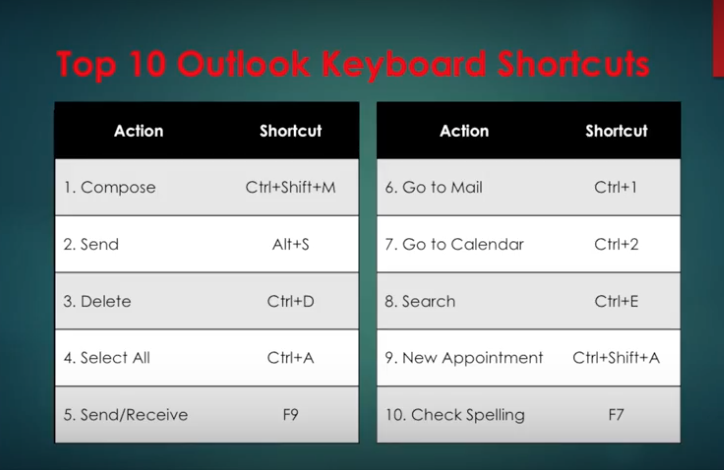
Using keyboard shortcuts in Outlook on Windows will help you work more efficiently. It’s also handy for those who have mobility or vision disabilities because using keyboard shortcuts can often be easier than using a touchscreen or mouse. Here are some popular keyboard shortcuts you should try.

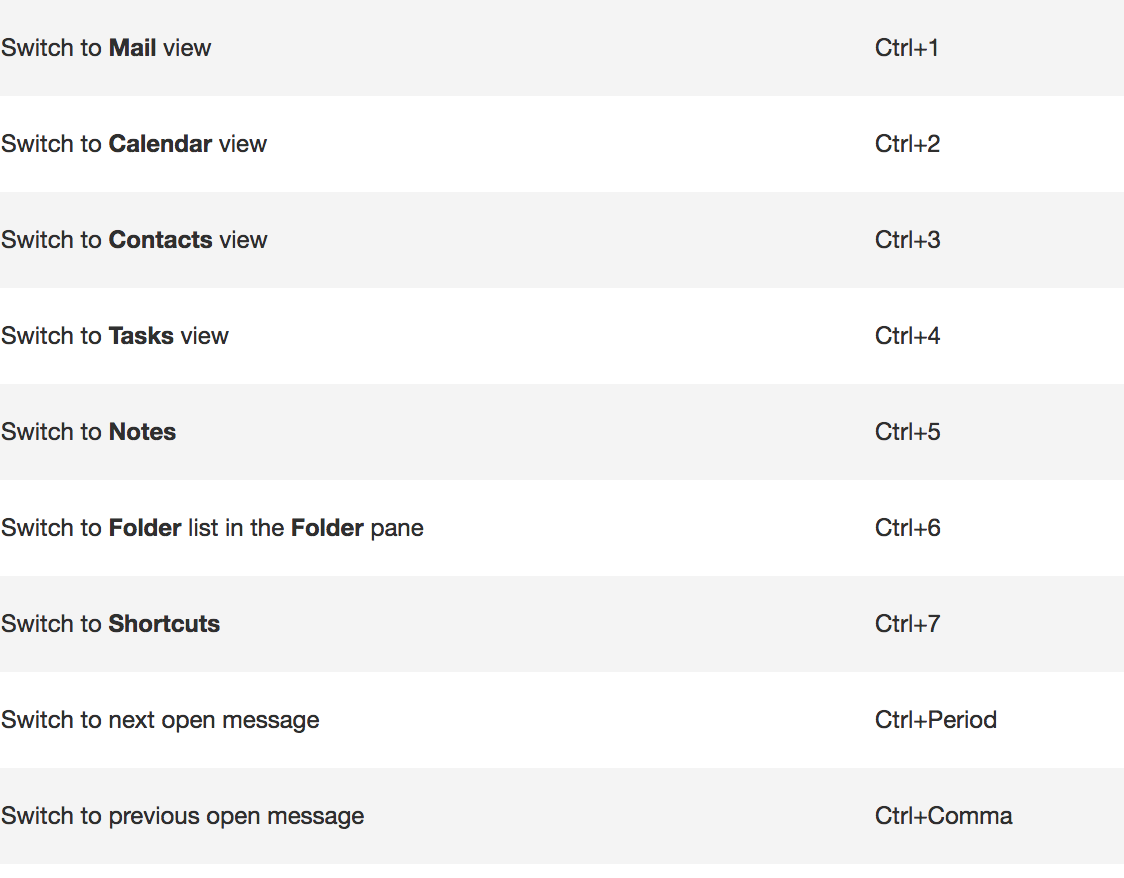
And there are more. Here are popular keyboard shortcuts for NAVIGATION:

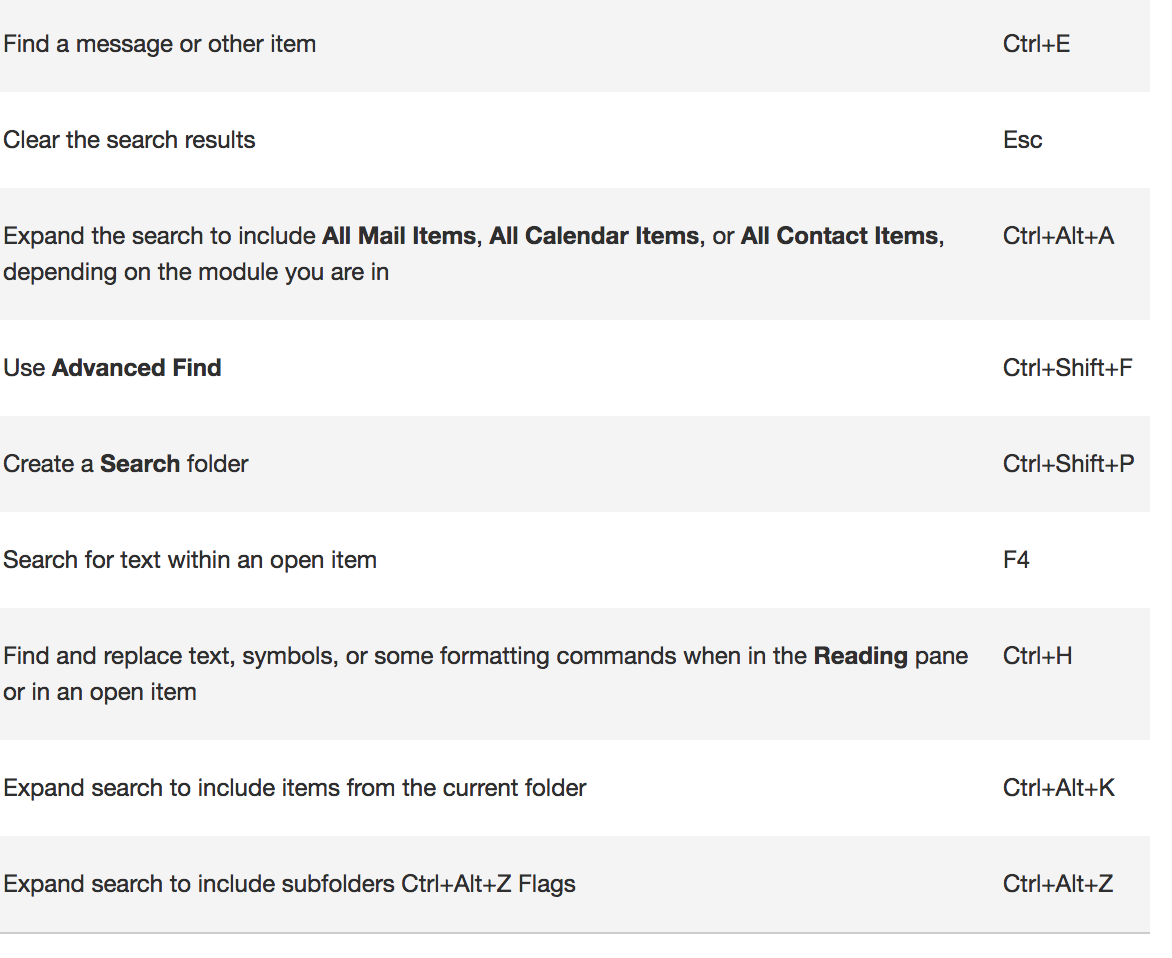
When searching, try these handy keyboard shortcuts:

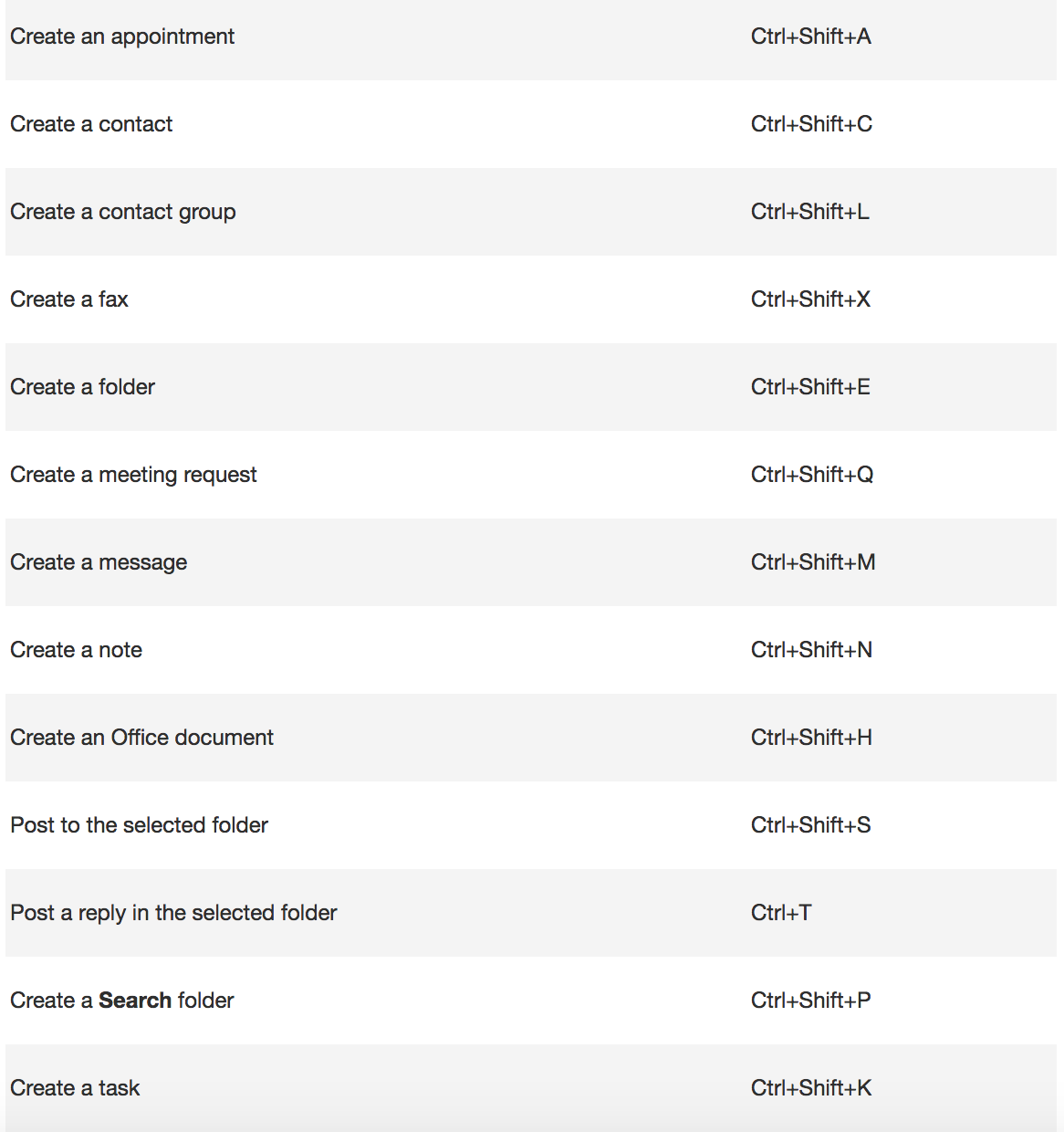
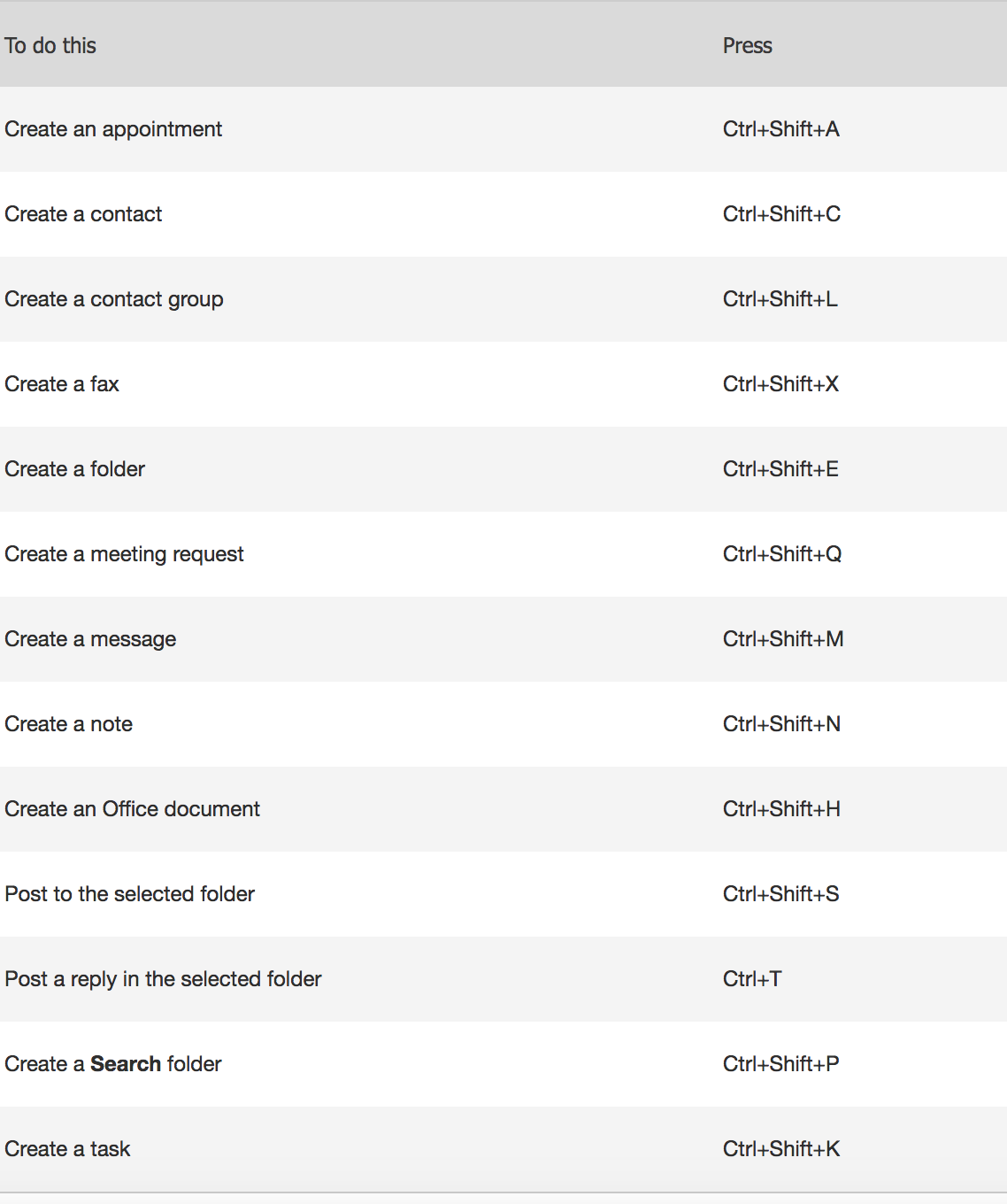
To create an item or a file keep these shortcuts in mind.

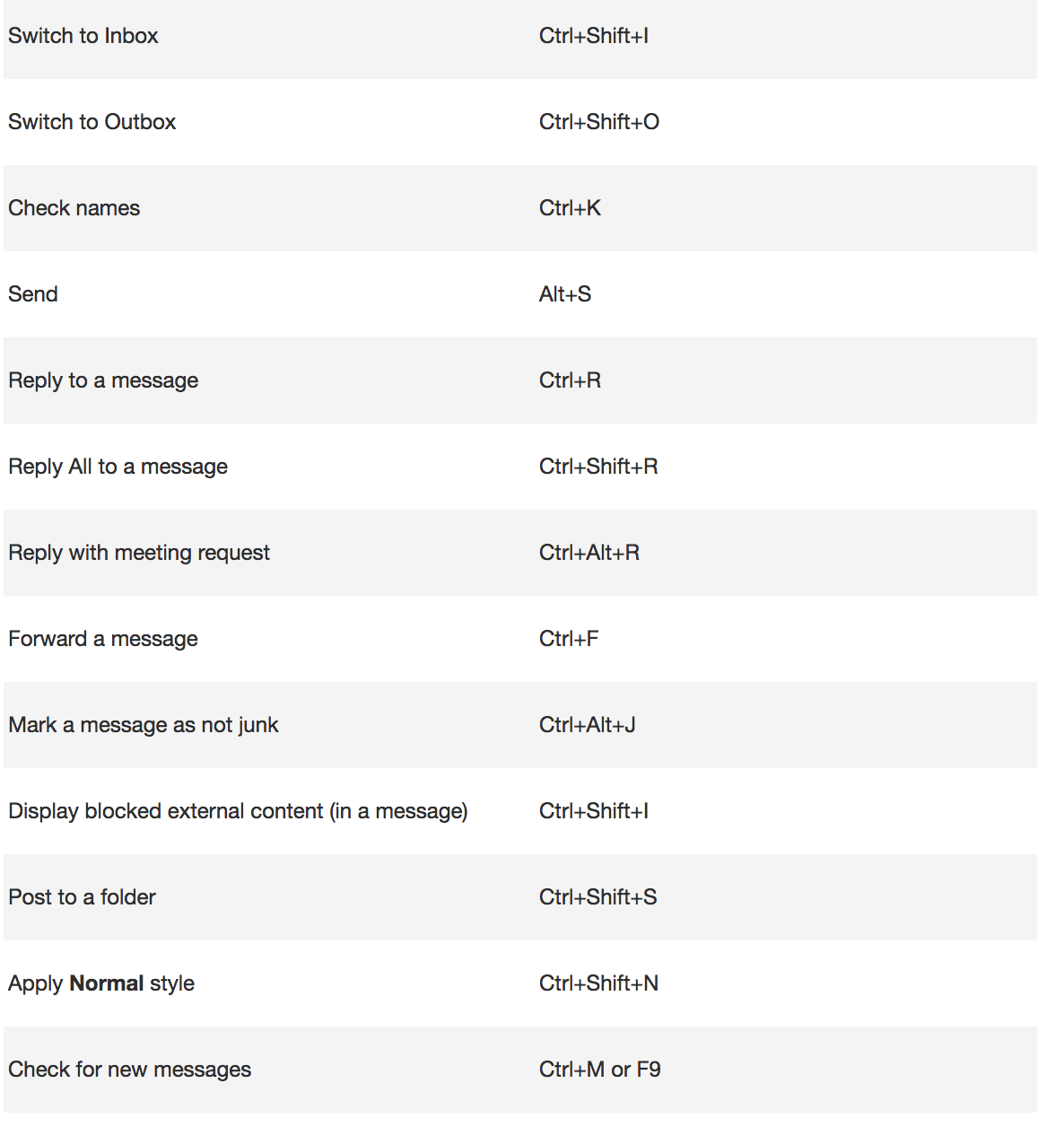
Shortcuts in Mail.

To see more Outlook 2016 Shortcuts go here.

2. Use Quick Steps

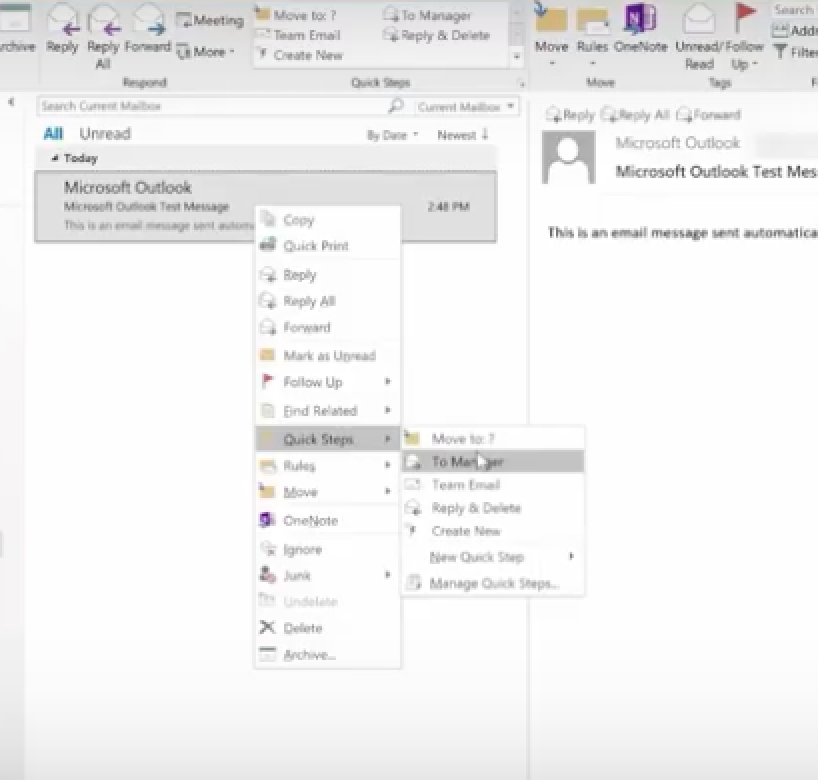
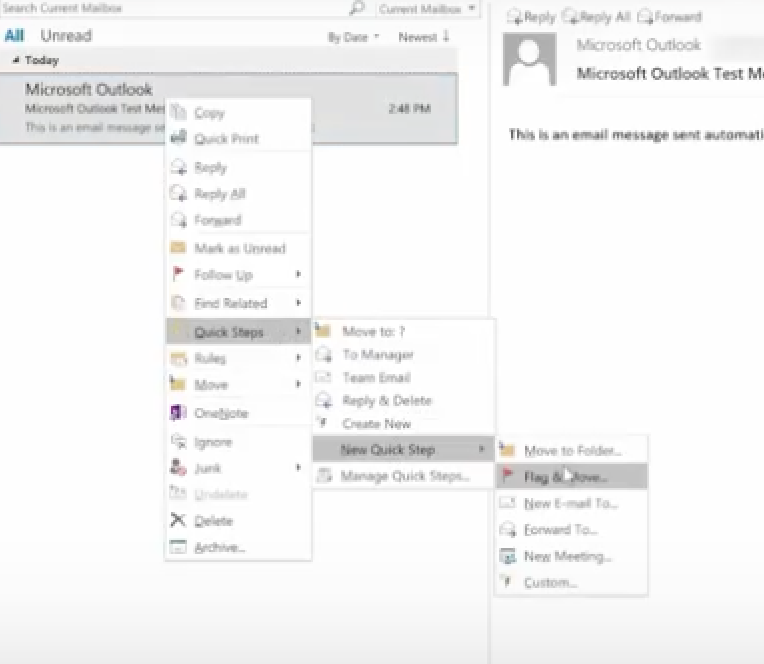
Right-click any email, choose Quick Steps and choose from the list.

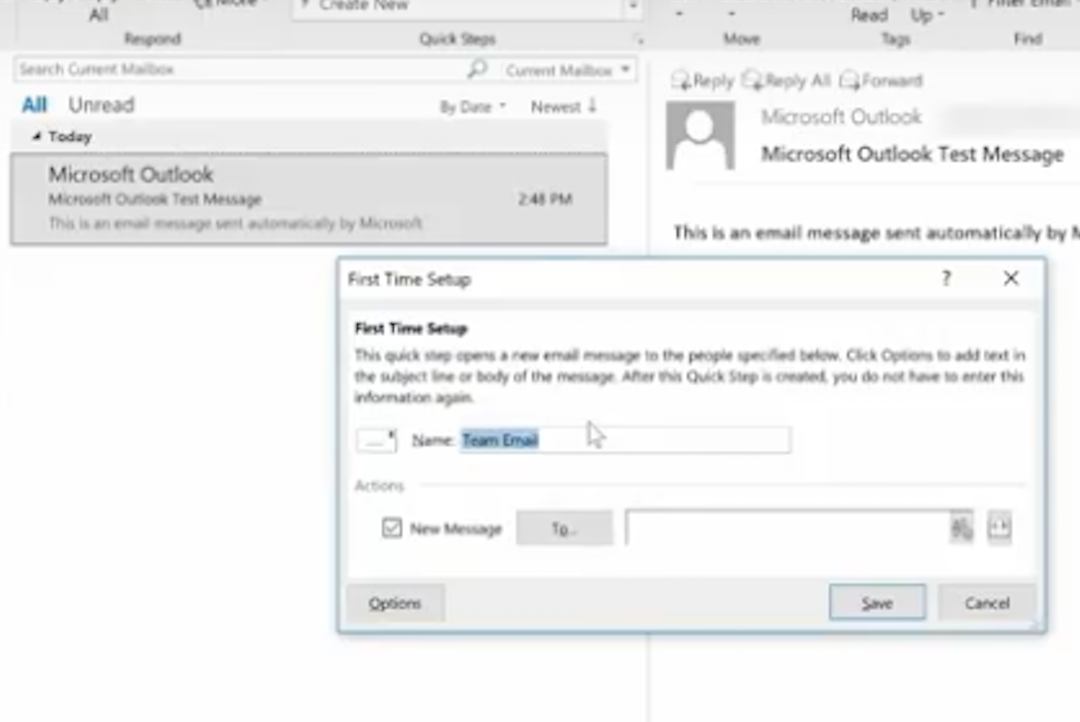
We’re going to choose Team Email. The first time we use this, Outlook asks you to name your team and enter their email addresses.

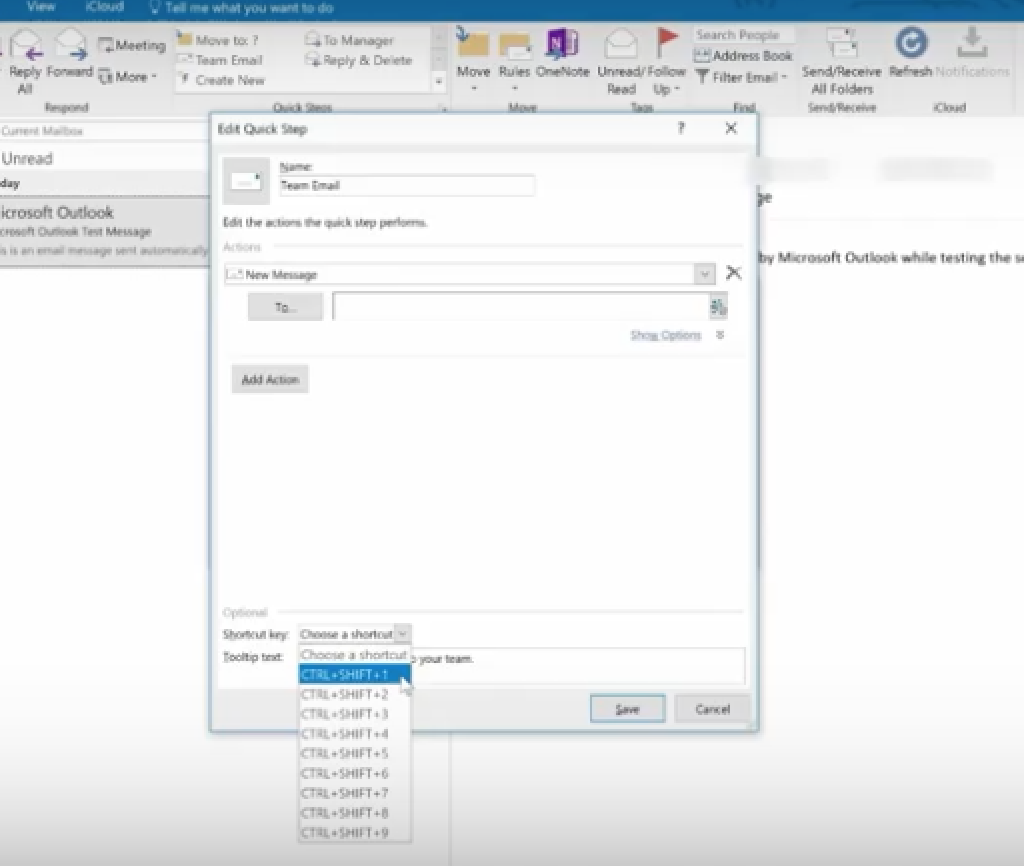
Then create a Keyboard Shortcut for this. So, the next time you hit Control Shift 1, an email to your entire team can be composed.

You can also create new Quick Step. Simply choose Create New Quick Step.

Here are some other Quick Steps to try: 1

  • Move to Folder: This is essentially the same as Move To.
  • Categorize & Move: This moves the selected message to a specific folder, marks the message as read, and assigns a category color and name to the message.
  • Flag & Move: This moves the selected message to a specific folder, marks the message as read, and assigns a flag to the message.
  • New Email To: This opens a New Message form with the To field already filled out with a particular recipient.
  • Forward To: This is essentially the same as To Manager.
  • New Meeting: If you often send meeting invites to the same group of people, use this Quick Step to open a New Meeting form with the To field already filled in with the invitees.
  • Custom: This opens the Edit Quick Step dialog box so that you can create your own custom Quick Step.

3. Use Conditional Formatting

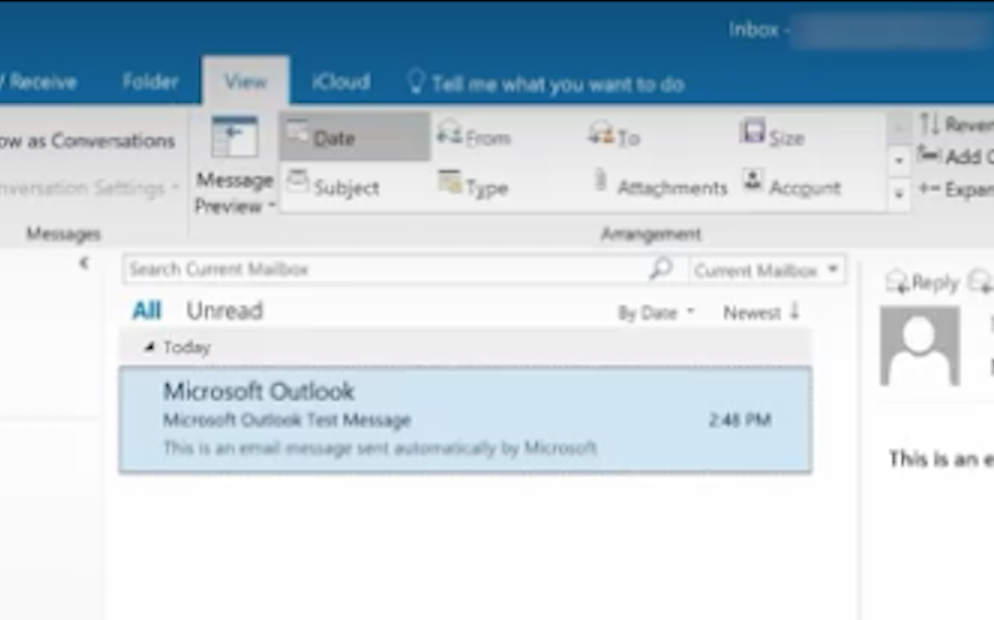
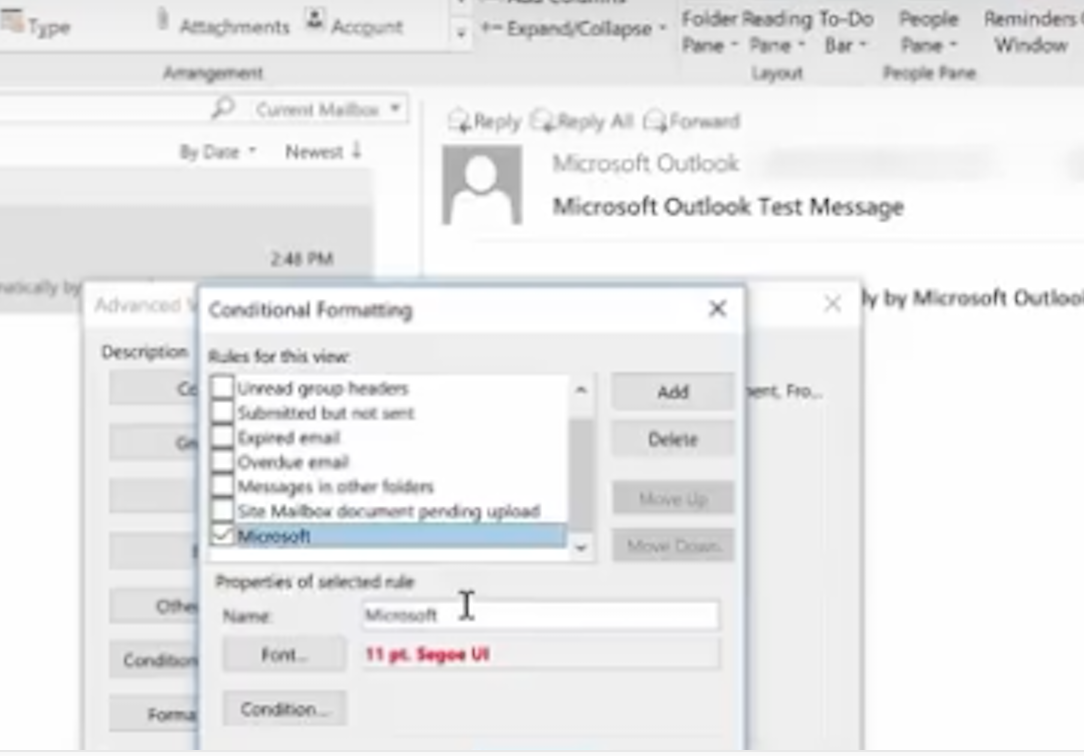
This is used to change the look of a particular email. You do this in the View Menu.

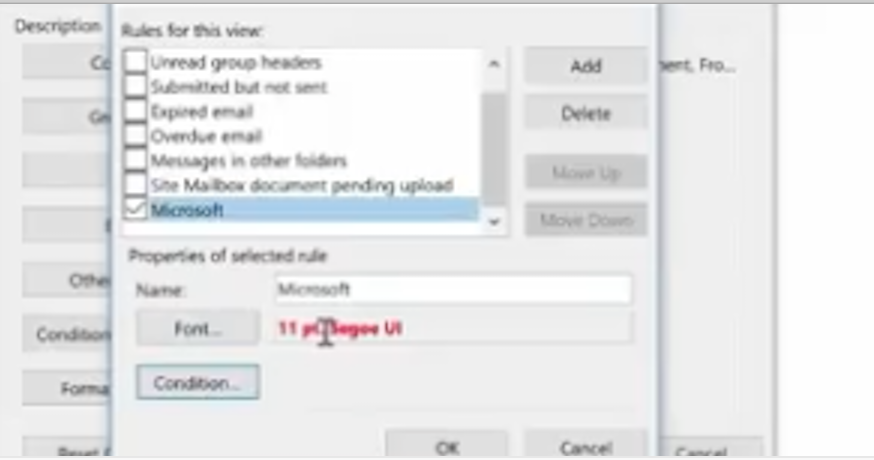
Here, we just click on Conditional Formatting and create an email called Microsoft.

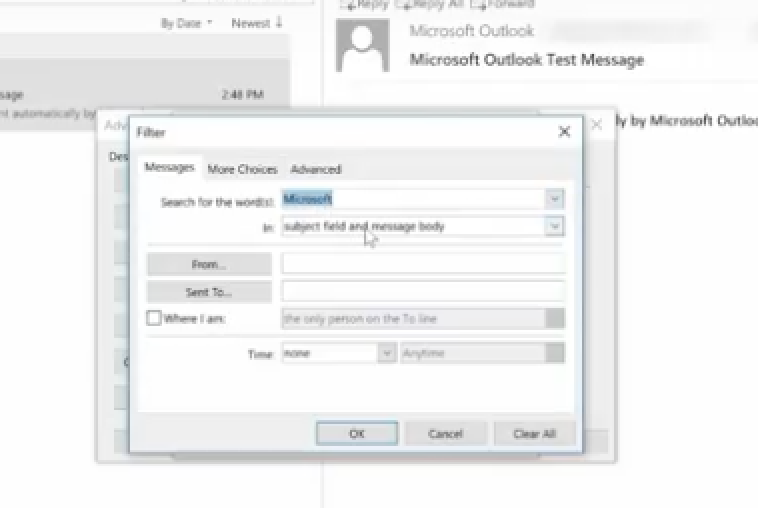
Next, we choose a condition, where the word Microsoft appears anywhere in an email.

Then, we ask it to appear in a bold red font.

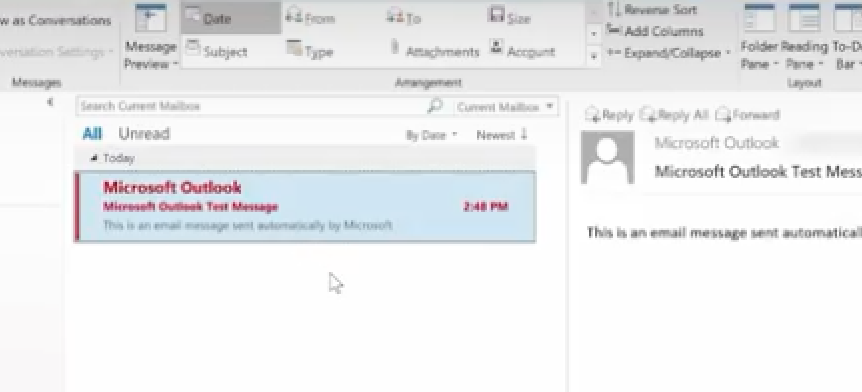
Now, any new email we receive with the word Microsoft in it will show up in red. This is a great way for us to recognize the importance of an email. You may want to do this for any email with your boss’s name in it!

And, there are more ways you can get the most from Outlook 2016. Here are a few ideas:

EMAIL

  • Change the color and contrast of Outlook: You can also use a picture or color as the background, add a text watermark to your emails.
  • Customize emails with the fonts you prefer: Change the default font for various email messages you send, or a particular font for messages that you forward or reply to.
  • Create signatures for your different email accounts: Create personalized signatures for your email messages: include text, images, your electronic business card, a logo, or even an image of your handwritten signature. Signatures can be added automatically to all outgoing messages, or you can choose which messages should use a particular signature.
  • Setup sound alerts when new emails come in: A sound can play when a new email message arrives. The default sound is a short .wav audio file, but you can change it to any .wav file of your choice.
  • Establish tracking options with delivery receipts: A delivery receipt confirms delivery of your email message to the recipient’s mailbox.
  • Use Outlook’s templates for your messages or create your own: Use email templates to send messages that include information that rarely changes from message to message. You can also insert icons, photos, and tables into your messages.
  • Embed voting buttons in your email to survey your recipients about a particular topic (such as, “When’s the best date and time for a meeting?”): Voting buttons are an excellent way to poll people, especially when communicating with large groups.
  • Use Quickparts to insert a standard set of words you often use: Use the Quick Parts Gallery to create, store, and locate content, including AutoText, document properties such as title and author, and fields.
  • Clutter: This is where you can place low priority emails you want to read later. Clutter helps you filter these low-priority emails saving time for your most important messages. Office 2016 remembers “Clutter” emails if you want.  If Clutter isn’t for you, you can TURN IT OFF.
  • Create folders and subfolders: You can base these on topics, senders, organizations, projects, etc.—Whatever works for you and organize your emails under the subjects you choose. Use folders in Outlook to move email messages, add a folder to your Favorites, and set a rule to move specific emails out of your inbox.

CALENDAR

Outlook 2016 calendars have all the tools and functionality you’ve relied on in the past, with improved features to help you manage your time. 

  • Set up multiple calendars (e.g., personal, business, health, etc.).
  • Create appointments quickly and share them with your contacts.
  • Scheduling assistant lets you access others’ calendars that you’re authorized to view (and vice versa).
  • Set reminders, reoccurring appointments/meetings, alerts, and more.
  • View your calendar by day, week, month, and year.

CONTACTS

  • You can also import contacts to Outlook from other email providers using the Outlook Import/Export wizard. Import a CSV file, Excel spreadsheet, or vCard.
  • Your contacts are linked to your email accounts, so you can simply key a name in the “To” field, and your contact’s email address will appear.
  • Set permission for a particular contact (delegate) to view your emails while you’re on vacation. Plus, you can give this person access to your calendar, tasks, and so on, as appropriate. One delegate can take care of your email, another your tasks, etc.

TOOLS

  • Always know how much space is left in your account.
  • Notify those emailing you that you aren’t available during a particular period with Out of Office. You set up a special message you want others to see.
  • Even set up different messages for people inside or outside your organization. (Outlook will remind you that the “Out of Office” message is turned on, so you don’t forget when you return.)
  • As mentioned above, similar to having an assistant help you manage your incoming paper mail, you can use Microsoft Outlook to allow a delegate, to receive and respond to e-mail messages and meeting requests and responses on your behalf.
  • You can also grant additional permissions that allow your delegate to read, create, or have more control over items in your Microsoft Exchange Server mailbox—And, set more than one delegate and permissions for various tasks.

TASKS

Outlook 2016’s task management helps you accomplish to-dos faster and easier.

  • Categorize your tasks with color codes.
  • Ping reminders for tasks.
  • Check-off tasks when complete.
  • Create tasks for others as well. Outlook integrates tasks with your emails so that you can assign a task to a recipient.  The task will show up on their task list.

To learn more about how you can get the most from Outlook 2016 contact us.

If You Don’t Know About These 3 Ways to Use Outlook 2016 More Efficiently, You’re Wasting Lots of Time Read More »

Let’s Play “Tech Truth Or Dare”!

Your cybersecurity practices shouldn’t be treated like a game of chance unless you are 300% certain you’re going to win. What can you do to make sure your business isn’t the ultimate loser?

Cyber Security

Is technology today the endless cycle of cat-and-mouse, with the bad guys always one step ahead? A quick search for “cybersecurity best practices” will yield millions of results, all with their ideas of what you can do – but does any of it make sense? Someone busy running a company faces a complex dichotomy: Being too busy running their company to worry about something that won’t directly generate revenue, but not giving enough time and attention to something that could directly impact revenue. Those are two very distinct and different thoughts, but still closely related.

Not only is cybersecurity a critical focus of business today, but it’s also the easiest way to fail. Cybercriminals – hackers – are usually one step ahead of us good guys, but that’s the “cat and mouse” game to them. We respond to cybersecurity breaches that make the news with preventive measures to avoid the same fate and do our best to have enough safeguards in place to protect every element we can.

Hackers seek a cybersecurity vulnerability to exploit to their advantage. Their reasons don’t matter – it’s the result that affects their victims. Why do we still have vulnerabilities when we know better?

Myth: Half of small businesses think they’re “too small” for a hacker to target.

Truth: Small businesses make easier targets for many reasons. They often don’t have the tech budgets that the Fortune 500 companies do in order to take every precautionary measure to avoid being hacked.

Smartphones are major targets of hackers now, given more than half of all web traffic is reported to take place via mobile devices. Smartphones don’t have the same level of protection, making them easy targets, and therefore easy points of entry to a cybersecurity vulnerability. Imagine pressing a thumbtack into a hairline fracture on a porcelain plate – this one weak spot has the potential for this singular action to shatter the plate into thousands of pieces. Now, imagine this plate is your proprietary data, and this thumbtack is a hacker. Can you see the potential damage?

Myth: Employees of small businesses know more about the company and are more invested in its success, therefore take the time to safeguard their actions.

Truth: The dedication of staff to their employer has nothing to do with cybersecurity.

Modern cybercriminals are targeting critical data: consumer information, accounts with intellectual property, financial information about both the company and consumers. Three out of every four small businesses have no formal cybersecurity policies or protocols in place for staff, nor training to discuss the latest threats and how to thwart them. Hackers know this – oh, yes, they know – and they also know the small business is less protected than those Fortune 500 companies. This is a lethal combination.

  • Nearly two-thirds of small businesses have yet to address security regarding mobile devices or enact formal policies for mobile device use as it pertains to professional operations.

Myth: Small businesses can bounce back faster after a breach.

Truth: Half of all small businesses don’t have a disaster preparedness plan in place for recovery should they be impacted by a cybersecurity threat, a “data breach”.

It’s reported that less than half of all small businesses back up their data weekly. Let that sink in. The data loss in the event of a hack could have catastrophic results for as many as half of all small businesses. In the event of a breach, companies of any size consider the data loss and downtime to have the greatest impact, followed by the revenue loss – but most of the time, the impact to a company’s reputation isn’t considered until already in clean-up mode.

If you’re ready to win at “Tech Truth or Dare”, here are the new rules of the game:

Do you know what needs to be protected?

What data do you store? How is your data stored? What protective measures and security protocols are in place? Where are the “holes”? This last question is the most important, and it’s a smart decision to hire an expert to help you with this one.

What formal policies need to be updated – or put in place?

Every business needs an official cybersecurity policy. This policy should also be updated annually, at the minimum. Formalizing a policy can make sure everyone that has access to your data follows the same procedures and the strongest safeguards are in place.

This should include:

  • Password protocols
    • Passwords should be unique, complex, and changed regularly
  • System updates
    • Check for the latest updates to all applications and security releases
  • Privacy settings
    • Verify that users have the most secure privacy settings on their desktop and laptop computers, and smartphones and mobile devices

What is your plan for how to handle a disaster?

Perhaps an extension of the previous question, but no less important is how to handle a hack or breach should one occur. You’ve taken all the necessary steps and precautions, but you still had a disaster – now what? Best practices include daily back-up of your critical resources – which you’ll need to identify – and then test the process to ensure it’s sufficient, just in case.

Talk to experts.

You are an authority in what you do, and your sales pitch to your customers focuses on your expertise. Why wouldn’t you hire experts to protect your business?

Is your training sufficient?

Make sure your staff is aware of the steps needed for Internet safety, email security, network threats, and how to detect and protect in the event of each. Equally important is what need to be done if something happens and they suspect a threat.

Prevent your business from becoming a victim of a hacker this year and win the game!

Make 2018 the year you have an ironclad cybersecurity program, for your home and your office!

Let’s Play “Tech Truth Or Dare”! Read More »

Want Your World At Your Fingertips In Just One Simple Step? You Got It!

The digital revolution has changed our world in unimaginable ways – and for the better! Tools and applications like Microsoft Word and Microsoft OneNote aim to make our lives easier, in one simple step.

Have you ever stopped to think about Microsoft’s naming convention? It’s probably not something that crosses your mind as you open a Microsoft application, like Word or Excel or Outlook. There are teams and departments at Microsoft whose roles include the creative scope for brainstorming names for new products in the Microsoft line-up. If you look deeper, there are not only subtle references to what each does within the name, but there are also psychological implications – like subliminal messaging – within the product names.

Microsoft Word is a word processor, but has a vast array of built-in tools to help users improve their finished written product, like a wordsmith! Its thesaurus feature aids users looking for just the right word when the typed word is close but not “it”. The spelling and grammar check gets many a student through assigned papers – and, more importantly, helps prevent professionals from making expensive errors, like errors that affect professional reputations and can impact revenue and profit. Microsoft Word can perform a mail merge, so users can send letters to clients with just a few clicks – after using the app to perfect their letter, of course. Contracts and agreements depend on accuracy!

Microsoft Excel is a bit of a double entendre. To excel is to show an exceptional skill or quality in a particular activity or subject. Within the word “excel” is “cel”, a homonym of “cell” or the individual areas within a spreadsheet where data can be entered. Lots of dry, technical information in that sentence, but the meaning is the same: a database tool that is superior to other database applications for the professional user base. Here is where Microsoft Excel outshines the competition – and why its previous competition, Lotus 1-2-3, is no longer used. Aside from being a spreadsheet application, Excel offers users an endless variety of tools to really make Excel the go-to platform for data analysis. Including charts, data manipulation, and tools like creating pivot tables in Excel was Microsoft’s act of establishing their superior position with this app.

In the list above, we also mention Microsoft Outlook. Outlook reigned king of email for a very long time in the professional kingdom, but Google’s G Suite is a strong competitor for small and medium businesses (SMBs). Outlook, again, tries to be an all-in-one package for professionals, with email communication but also a calendar feature, a reminder system, user-friendly meeting tools and a variety of user settings to customize the experience.

These applications speak to Microsoft’s dedication to being the full professional package for businesses – and their full Office 365 suite is proof. Included are products like OneDrive, SharePoint, and OneNote. OneNote is one of the most underutilized products in the Microsoft line-up, and with new features being added all the time, we think this is because users aren’t aware of the full extent of what OneNote has to offer.

Microsoft designed OneNote as the digital solution for those who grab the nearest sticky note or doodle pad – or open a new Note on their iPhone – to jot down a quick scribble to remember for later. OneNote helps users gather notes, thoughts, and ideas, all in one centralized and organized location. Users can store everything from quickly-jotted notes to meeting minutes, to lengthy details about projects for home or work, in the same place. What’s even cooler about OneNote is that Notes are searchable and sharable.

  • Did you see where we mentioned the iPhone? That’s right – iPhone users rejoice! OneNote is also available for Mac.

To clarify, OneNote is part of the subscription-based Office 365, but OneNote is free as a stand-alone product. To get Microsoft OneNote, follow these steps:

  • From a desktop or laptop computer, open a web browser window
  • Enter OneNote.com
  • Download the latest version for free

New users will be excited to see that Notebooks stored in multiple locations (SharePoint, OneDrive, etc.) show up within the application the same way, simplifying the user experience. These same users will become experts in no time with the classically straight-forward way Microsoft presents the tools at your disposal.

Cool features inside OneNote for users underscore the built-in ability to share your information across all your devices and with other people. Check out some of these:

Email to Yourself

Set up your email from any email service provider supported, like Yahoo or Gmail, and of course, Outlook, within OneNote and you can send any email in your mailbox to your OneNote with a simple one-step task: forward the email to [email protected], and you’ll see it in OneNote!

Office Lens

This handy little tool lets you capture documents and photos with the camera on your phone, and then send that photo to OneNote – try the Email to Yourself trick we just talked about! OneNote and Office Lens will add some filters, adjust lighting, crop out backgrounds, etc., and show up clearly in OneNote. This is great for receipts you’re afraid you might lose, or other situations you might forget about later.

Clipper

This one helps users integrate OneNote with their web browser.

  • Go to OneNote.com/clipper
  • Click on the button to download the extension to your web browser

Now users can “clip” a page into OneNote, like clipping a coupon from a physical newspaper, except it’s now forever stored digitally in OneNote (until a user deletes it). Text on these pages is searchable within OneNote, too, which is very helpful if a user can remember the context of the page clipped but not necessarily when or exactly what was clipped. This is true of words within a picture on the clipped page, too.

OneNote boasts a number of partners that allow users to integrate with featured apps so that the apps can be used conjointly. A few of these partner apps include:

News360

This is a news reader, offering users news stories much like on a news website. Users can click on a story, and with OneNote integration, the story will show a “Save to OneNote” button. As long as a user is signed into their account in OneNote, the story will save in OneNote. Again, words in the story are searchable.

Feedly

Feedly is a website aggregator, bringing together all the pages a user wants to see in a centralized location and updates the pages as they update. This works similarly to RSS feeds and has the same “Save to OneNote” button that News360 has, as well as the words in the story remaining searchable.

Doxie

This one is for users of Doxie portable scanners. If you have one of these lightweight and portable gadgets, you’re going to love saving your scanned documents to OneNote! Any of the text can still be found with a simple search.

Integration is wonderful! Technology is amazing! With OneNote, Microsoft welcomes developers to make their own services with which to integrate for OneNote and share with users. Make OneNote your new best friend today.

MS OneNote

Want Your World At Your Fingertips In Just One Simple Step? You Got It! Read More »

Another Day, Another Major Data Breach – 20 Tips to Protect Your Business in 2018

Over Easter weekend, hackers stole 5 million credit and debit card numbers that were used at Saks Fifth Avenue, Saks Off Fifth, Lord & Taylor, and Canada-based Hudson’s Bay Company. The personal information of customers who shopped at these stores is now compromised.

Saks Hacking

Most of the stolen card data — which goes all the way back to May 17 — was obtained from these stores in the New York City metro area, and other stores in the Northeast U.S. It appears that these stores weren’t using a secure credit card payment system. Security firm Gemini Advisory reported:

“The attack is amongst the biggest and most damaging to ever hit retail companies...Credit card data was obtained for sales dating back to May 2017. The breach likely impacted more than 130 Saks and Lord & Taylor locations across the country, but the majority of stolen credit cards were obtained from New York and New Jersey locations.”

Gemini Advisory says that the hacking group JokerStash/Fin7 boasted about their success on the Dark Web and that the data is now for sale. The name of their “product” is BIGBADABOOM-2. Gemini Advisory’s co-founder and chief technology officer said that this group previously targeted major hotel and restaurant chains. They were also responsible for other data breaches like the ones that affected companies including Whole Foods, Chipotle, Omni Hotels & Resorts and Trump Hotels.

The hackers typically use phishing emails to gain confidential information. They send the emails to company employees including managers and supervisors who are key decision makers. They disguise themselves as an entity these people would recognize as legitimate. The email contains an invoice and asks them to pay it via a link provided. Once clicked, their IT system is infected.

No store is immune from this type of breach. However, you can protect your business from phishing attacks by educating your employees.

Cybersecurity training is a must for all businesses today. You can have all the right security technology in place, but if one of your employees unknowingly clicks a malicious link, or visits a counterfeit website, your business can be ruined.

Phishing is when a scammer uses fraudulent emails, texts, or copycat websites to get you to click a link so that they can steal your confidential information like Social Security numbers, account numbers, login IDs, and passwords. They use this information to rob you of your money and your identity.

The majority of account takeovers come from simple phishing attacks where you or someone in your organization gets tricked into releasing private credentials and information.

Scammers also use phishing emails to get access to your computer or network, so they can install programs like ransomware that lock you out of your important files unless you pay a ransom.

Spoofing

Phishing scammers try to lure you or your employees into a false sense of security by pretending to be a trusted source like a legitimate company, the IRS, a colleague, vendor, or even a friend or family member.

Phishers create a sense of urgency, making it seem like they require your information right away or something terrible will happen to you. They may threaten to hold back a tax refund or close your bank account. Essentially, they lie to get your information.

Here are things that you and your employees should do to protect your business.

Be cautious about opening attachments and clicking links in emails.

Files and links may contain malware that can infect and weaken your computer’s security.

Type in URLs and email addresses.

If a company or organization you know sends you a link or phone number, don’t click the link or call the number. Go to your search engine and type in the correct URL for the company’s site and find the legitimate phone number.

Call the source. Don’t respond to emails that request confidential or financial information. Phishers use strategies that prey on fear. If you think the contact in the email needs this information, refer to the phone number in your address book, not the one posted in the email, and call them to verify the request.

Use TwoFactor Authentication. For accounts that support this, two-factor authentication is an extra step to ensure the security of your information. It requires both your password and an additional piece of information to log in to your account. The second piece might be a code the company sends to your phone or a random number generated by an application or token. Two-factor authentication protects your account even if your password is compromised.

 Update your applications and Operating System. Use a good security software you trust, and make sure you set it to update automatically. Also, make sure you update all your applications and your Operating System when you receive patches from the manufacturer. Don’t delay, as there are good reasons for these updates, and they will protect your information from the latest threats.

Back up your files to an external hard drive and enterprise-based cloud storage. Back up your files regularly to ensure you have a duplicate of all your files and applications if your network is compromised.

Google conducted a study between March 2016 and March 2017 in conjunction with researchers from the University of California, Berkeley. The results revealed that phishing is far riskier for users than data breaches because of the additional information phishers collect.

Use a unique email address.

Spammers send out millions of messages to name combinations hoping to find a valid email address. If you use a common name like Joe, you’ll receive more spam than with a name like Wwmj4itvi. It’s harder to remember an unusual name like this. Try using an acronym like: “We were married June 4 in the Virgin Isles (Wwmj4itvi).

Use an email filter.

If your email account provides a solution that filters out potential spam or will channel it into a bulk email folder, opt for this. If they don’t, you might want to consider another Internet Service Provider.

Use more than one email address.

Consider using a disposable email address service that forwards messages to your permanent account. If the disposable address receives a lot of spam, you can shut it off without affecting your permanent address.

Limit your exposure.

Don’t share your email address in public. This includes blog posts, chat rooms, social networking sites, or in online membership directories. Spammers use the web to obtain email addresses.

Check privacy policies and uncheck boxes.

Before submitting your email address to a website, determine if they can sell your email to others. Don’t provide your address to sites that won’t protect it.

Be wary of messages that:

  • Try to solicit your curiosity or trust.
  • Contain a link that you must “check out now”.
  • Contain a downloadable file like a photo, music, document or pdf.

Don’t believe messages that contain an urgent call to action:

  • With an immediate need to address a problem that requires you to verify information.
  • Urgently asks for your help.
  • Asks you to donate to a charitable cause.
  • Indicates you are a “Winner” in a lottery or other contest, or that you’ve inherited money from a deceased relative.

Watch for messages that:

  • Respond to a question you never asked.
  • Create distrust.
  • Try to start a conflict.

Watch for flags like:

  • Misspellings
  • Typos

 Always Use Secure Passwords.

  • Use Two-Factor Authentication if it’s available.
  • Never use words found in the dictionary or your family name.
  • Never reuse passwords across your various accounts.
  • Consider using a Password Manager (e.g., LastPass or 1Password).
  • Use complex passwords.
  • Create a unique password for work.
  • Change passwords on at least a quarterly basis.
  • Use passwords with 9+ characters.

Keep Your Passwords Secure.

  • Don’t tell anyone your passwords.
  • Don’t write them down or email them.
  • Never include a password in a non-encrypted stored document.
  • Don’t speak your password over the phone.
  • Don’t hint at the format of your password.
  • Don’t use “Remember Password” feature of application programs such as Internet Explorer, Portfolio Center or others.
  • Don’t use your corporate or network password on an account over the Internet that doesn’t have a secure login starting with https://. If the web address begins with https:// your computer is talking to the website in a secure code that no one can access. There should be a small lock next to the address. If not, don’t type in your password.

If you believe your password may have been compromised, you should change it.

Regularly Backup Your Data Both Onsite and Remotely.

  • Maintain at least three copies of everything.
  • Store all data on at least two types of media.
  • Keep a copy of your data in an alternate location.

If you haven’t backed up your data and you’re attacked, it’s gone forever.

Ask Your IT support to Conduct Testing and Security Awareness Training for Your Employees.

  • Give a social engineering test.
  • Share the results with your staff.
  • Debrief and train your users.
  • Test again each year.

 Report Phishing Emails and Texts to the Federal Trade Commission.

Forward phishing emails to the Federal Trade Commission at spam@uce.gov – as well as the organization that was impersonated in the phishing email. Include the full email header if it’s available.

File a report with the Federal Trade Commission at FTC.gov/complaint.

Visit Identitytheft.gov. Victims of phishing could become victims of identity theft; there are steps you can take to minimize your risk.

You can also report phishing emails to reportphishing@apwg.org. The Anti-Phishing Working Group which includes Internet Service Providers, security vendors, financial institutions and law enforcement agencies uses these reports to fight phishing.

Another Day, Another Major Data Breach – 20 Tips to Protect Your Business in 2018 Read More »

Talk to our Team