
Infinet

Screen Shot 2020 03 18 at 10.25.41 PM

Top Tips for Improving Data Analysis with the IF Function in Microsoft Excel

Improving Data Analysis with the IF Function in Microsoft Excel

Have you ever wondered what the IF Function in Microsoft Excel actually does?  Here we explore a few top tips for making it save you time while evaluating data. 

There’s no doubt that Microsoft Excel is a robust program. Companies all over the globe utilize this application to analyze, track, and otherwise organize data in an easy-to-read format. But how much do you know about it and the various features that are available? And are you taking the right steps to ensure you’re looking at your spreadsheets in the most efficient manner possible? Here are a few of our tips and techniques to help you save time and improve your data analysis by using the IF Function in Microsoft Excel.

Tip #1: Understand What the IF Function Actually Does to Help Your Workflow

The first real step in making sure you’re using Microsoft Excel’s IF Function appropriately is to understand what it actually does. The IF Function tests whether a condition is true or false, and then performs an action. These actions can be calculations, data entry, or something closely related. The function is incredibly useful if you have large data sets or need to make significant changes, as it is a great way to save time in your workflow.

Tip #2: Creating the IF Function is Incredibly Easy

Creating the IF Function effectively starts with knowing the three parts: the logical test and then a value if true and a value if false. From there, all you have to do to make it work with your spreadsheet is to choose the data sets that you want to evaluate and determine what you want the true and false results to be. To do this, use the IF Function on the Insert a Function menu. Click okay and enter the conditions as you are prompted to do so on the screen.

Tip #3: Knowing How to Nest Functions

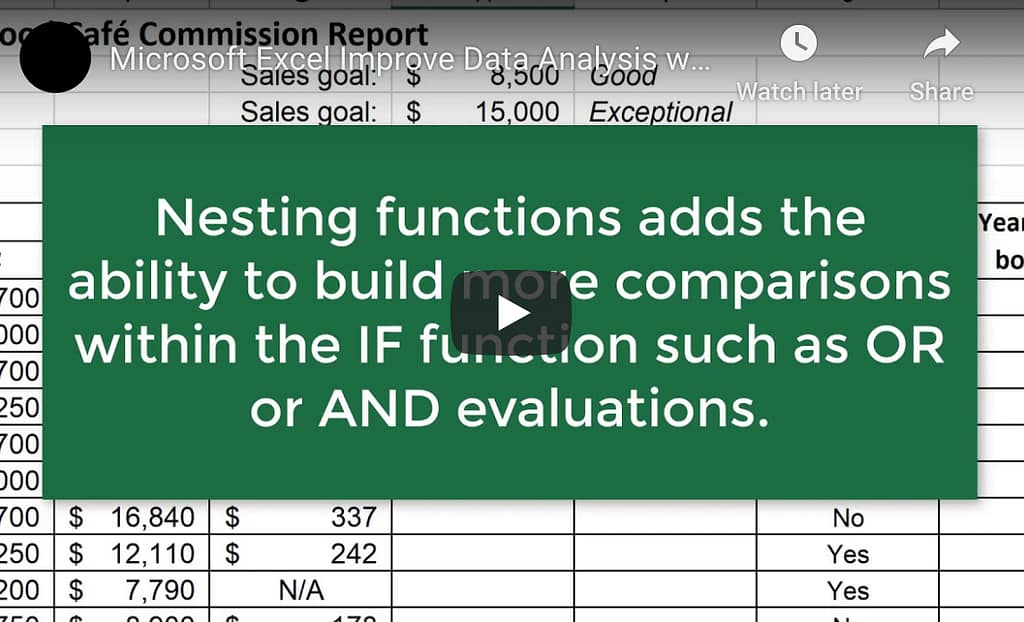
It is possible to use multiple IF Function formulas at the same time. In some cases, you might have multiple different possibilities or different levels of data that you want to compare. That’s when knowing how to nest multiple IF Functions becomes important. Nesting functions adds the ability to build more comparisons within your formulas instead of having to complete them separately.

Tip #4: Adding AND and OR to Your Functions

You can also add AND and OR to your IF Functions to make the results much more specific. While this is technically part of understanding how to nest functions, knowing how to do this is an effective way of utilizing the IF Function in a more efficient manner. An example of this is comparing two columns of data: one showing the amount of sales and one determining if an employee has completed training. By adding AND or OR to your IF Function, you can show a specific result, such as those employees that hit a specific sales goal and finished the training program you provided. As you can see, this can be a really easy way to get the information you need without having to spend a ton of time scouring through your entire spreadsheet.

Tip #5: Using Range Names to Make Data Easier to Sort

Range names are essentially a stored label that allows you to identify a range of one or more cells. They are incredibly useful for navigation, formulas, and even printing off specific parts of your spreadsheets. For use with the IF Function, you can utilize data ranges to save time when you’re working on a specific block of values as it allows you to use that range name instead of specific cell names. Range names can have letters, numbers, or an underscore, but cannot have spaces. And they are not case-sensitive, but title case is recommended for ease of viewing.

Tip #6: Remembering to Use Quotations with Text Strings in Your IF Function

Using the IF Function is an incredibly easy way to add text to a specific cell when certain criteria are present. However, you do need to remember to use quotations around your text strings in your IF Function formula. Failure to do this can really mess up your data set and make the formula not work correctly. Should you have a problem getting the IF Function to work for you, this is one of the first things you need to check.

Tip #7: Changing Text with Conditional Formatting Based on Your Result

Not only can you add text or insert a formula with the IF Function, but you can also change text visually with conditional formatting based on your result. It can be done automatically and setup within Excel under the Home tab. Examples of this option in use include turning a specific number bold and red if it does not meet the criteria of your IF Function, or highlighting it in yellow if it does meet certain requirements.

Conclusion

Microsoft Excel is a great way to analyze and interpret datasets. The IF Function allows you to do this in an easy-to-read and simple manner while saving you tons of time in the long run. These quick tips are a great way to skip complicated formulas and really make your spreadsheets work for you.

Microsoft Excel Training

Top Tips for Improving Data Analysis with the IF Function in Microsoft Excel Read More »

GettyImages 1074284730

Know the Digital Threats: 6 Dangerous Malware & How to Stop Them

Know and Protect Your Network From These Malware Threats

Every day, new malware is discovered that threatens U.S. business and individual security. Continue reading to learn about six of the most recent named and dangerous malware threats.  

Back in 2018, U.S. Cyber Command was restructured to become an officially unified combatant command–meaning that it now acts as its unit organized under its commander who reports directly to the Defense Secretary. This critical change became necessary following an increasing amount of sophisticated cyber attacks. Hackers are constantly evolving, constantly upping the ante, and the U.S. Cyber Command is now one of our frontline defenses against those attacks. One way they have assisted the entire country is by diagnosing and alerting the general public of new malware. This is critical information that every business owner and the tech-savvy individual should keep up-to-date on to protect their assets and data.

Malware Threats Business

Know Digital Threats: 6 Dangerous Malware & How to Stop Them

The Basics of Malware

The word malware is a mash-up of malicious software. It is thereby defined as any software that is malevolently used to steal data, compromise computer functionalities, bypass admin controls, or otherwise cause an issue with another person or organization’s computer. As you might expect, malware is a broad umbrella term that encompasses different types of attacks, such as viruses, adware, and Trojan horses.

The 6 New Dangerous Malware Named by the U.S. Cyber Company

There are always new types of malware being created and deployed by malevolent forces. The six new dangerous types of malware announced by the U.S. Cyber Company are ones discovered to have been used by a government-backed North Korean hacking group. These six types of malware have been unleashed against various U.S. targets, but it is yet unknown the scale of those attacks, or all who were targeted. This is why all businesses and professionals need to keep abreast of the latest digital security news.,

The six new dangerous malware named were as follows:

  • Bistromath. This is a variety of trojan horse that features full remote access to allow the hacker to perform file uploads and downloads, system surveys, process and command executions, and, very worryingly, monitor microphones, screens, and clipboards.
  • Slickshoes. This is a form of dropper malware that can load information onto a computer but cannot execute.
  • Hotcroissant. This is a full-featured becoming implant that, once it finds its way into a host computer network, will perform many of the same functions as the Bistromath.
  • Artfulpie. This is another implant malware that will download into a host network and then load its memory to execute dangerous DLL files.
  • Buttetline. Another implant, this one utilizes a faux HTTPS scheme that makes it incredibly hard for many malware-detection security systems to detect.
  • Crowdedflouder. This type of malware executes via Windows to unpack and enable a remote access trojan within the computer’s memory system.

Essential Tips for Preventing Malware Infection From Impacting You & Your Business

The hackers may be getting more sophisticated every year, but so are the good guys. Your browsers, plugins, applications, and software all have teams of tech gurus working on them to make them safer and more resilient to outside attacks continually. The following is a look at a few tips and ways to leverage those assets and be smart to prevent a malware infection:

  • Update all of your browsers, operating system, plugins, applications regularly, and whenever prompted. Ask for a schedule by your tech team if applicable.
  • Never click on any email links or download attachments from unknown or untrusted sources. If you manage a business, make this a company-wide policy. Be wary of any phishing emails from firms you might otherwise trust (such as your financial institution). Always use a separate tab to log into such sources.
  • Practice creating strong passwords and change them at least once every four months.

Contact Our Team for More Information

Subscribe to our blog to stay up-to-date on the latest tech and digital security news and contact us if you have any questions about staying safe from malware.

Know the Digital Threats: 6 Dangerous Malware & How to Stop Them Read More »

GettyImages 1131014063

Use SharePoint to Keep Business Data Organized

Metadata Gives You Control of Disorganized Online Filing Systems

SharePoint gives you a simple solution to keep your online files organized, using metadata to create customized ways to sort and find the information you need.

It’s an all-too-common occurrence. You need to send a business file to a colleague or client. You hesitantly open your file manager window and shudder. Soon, you’re navigating through generations of file folder structures, organizational schemes, and naming conventions that have long been abandoned. An hour later, having spent far too long hunting for the file in question, you find the desired info and can attach it to your email.

Keeping business information organized is not easy. Files, folders, names, and systems come and go, often discarded in a digital graveyard.

Fortunately, there’s a standard Microsoft tool to help you keep information organized.

Sharepoint Metadata

Can I Use SharePoint to Organize Data?

SharePoint is a popular app included in Office 365 and other enterprise versions of the popular productivity suite. In SharePoint, which is essentially a digital document library, you can file documents, create folders, and share with internal and external teammates. It also can use key organizing features to help reduce the chaos in your filing.

The key is metadata. Nearly every file you use has metadata associated with it. Think about some of the common attributes you know about files — file name, creation date, file size, and file type are just a few.

Whenever you change the name of a file, for example, you change its metadata.

The beauty with SharePoint is that you can easily create new metadata categories and use tools to add details. Once the details are entered, you can search and filter on the new metadata to quickly find what you need.

How Can I Use SharePoint Metadata to Organize Work Files?

Here is a step-by-step guide to using SharePoint metadata for file organization. For the purposes of this example, let’s pretend we’re trying to organize social media messages for a marketing campaign. We are going to launch the campaign on Facebook, Instagram, and Twitter and use video, text, and image files.

Step 1: Find the Files

Start by navigating within SharePoint to the library or document list that contains the files you want to organize. Be sure that you are the site owner to access the tools that allow for customized metadata.

Step 2: Build the Categories

Each new category of metadata will become another column within the document list. Select “Add Column” and give it a name. In our example, our first new column will be “Platform.”

When you create a new column, you can select its type. Among the options are Single line of text, Multiple lines of text, Number, Yes/No, Person, Date, Choice, Hyperlink, and Picture. For our example, we’d probably select Choice and add in the social media platforms.

We can add a second new column for “Media Type” and again choose Choice and enter in Video, Text, and Image as options. If we wanted, we could add a third new column, call it “Completed” and make it a Yes/No type.

Step 3: Apply the Metadata

In our list of social media posts, we can now apply new metadata tags for Platform, Media Type, and Completed. SharePoint has a great feature called Quick Edit that lets you apply metadata to all the documents in a list. You can run through each library option and apply, for example, which items are video entries, which are for Facebook and which are still in progress.

While it can be a bit tedious to go through an existing list of documents, in the long run, the work will pay off handsomely.

Step 4: Filter to Find

The metadata tags allow you to filter on any of the columns (just like a click on the Name column can give you an alphabetized list). Want to see what creatives are ready for each platform? Click on that column heading to see a sortable list. The same goes for looking at posts by type or completion status.

SharePoint is a powerful way to keep your documents organized and searchable in different ways.

Use SharePoint to Keep Business Data Organized Read More »

GettyImages 836798276

7 Myths Small Businesses Still Believe About PC Technology

The 7 PC Myths Draining Your Business Technology Budget

Evaluating your business technology budget? These 7 PC myths could be costing you a lot of money. From slow computers to hacker vulnerability, see how to fix it.  

Slow Computers

Think you’re saving money by keeping those old PCs running in the office? Think again. An Intel study found that using a business PC that’s older than five years costs the business nearly $700 a year in repair and maintenance costs alone. What other costly PC myths are draining your technology budget?

Myth #1: A Slow Computer Has a Virus

Slow computers are productivity killers. If you have slow PCs, studies show that the average employee loses 40 min/day due to downtime.

That’s on top of 29% reduced productivity due to slower processing.

For many years, office workers have proclaimed, “it’s got a virus”. But the truth is there are many reasons that computers slow down over time. And your technology solutions partner will have many troubleshooting techniques in their tool belt to speed up slow work stations.

So if the virus scanner turns up nothing, know that you have options. Here are just a few things you can try:

  • Clearing caches and history
  • Rebooting if you haven’t rebooted for a few days
  • Closing programs and re-opening (not a good long-term solution)
  • Reducing the number of start-up programs
  • Checking for conflicting malware protectors

Myth #2: Macs Don’t Get Viruses

Who knows where this one started? Probably Apple or Apple enthusiasts trying to get a foothold in the business computer market. Truth, Macs are just as susceptible to malware. Whether you’re a Mac business or a PC business, you need a comprehensive cybersecurity strategy.

Myth #3: Letting Your Battery Run Down Before Charging to Extend Battery Life

This was true on older devices. Leaving a laptop docked on a charger would kill the battery life.

But if you have business laptops, tablets and phones that are less than five years old, this is no longer the case. Devices with lithium-ion batteries do not suffer this fate. On top of that, Microsoft, Apple and Android now use machine learning to track your charging habits and avoid straining the battery.

Myth #4: Our Business Is Too Small to Be Targeted by Hackers

Actually, over 50% of cyberattacks happen to small businesses. They’re often less prepared. And they may be complacent, thinking what are the chances they’d attack us?

Most cyber attackers don’t go for the big score. Instead, it’s more efficient to go for the least protected. Attacking 10 poorly protected small businesses versus one better protected medium-sized business will yield a higher ROI for the hackers.

That’s smart business!

Myth #5: Consumer PCs and Business PCs Are Interchangeable

This is especially untrue now. With so many people doing most of their computing on their phones, home computers haven’t needed to advance much beyond the technology of 10-15 years ago.

Instead, manufacturers have focused on the business market, where businesses demand faster processing and greater capabilities. For this reason, the fact is, if you’re buying PCs for business, make sure they can handle business computing.

Myth #6: RAM Is All That Matters

RAM, random access memory, is important for speed. More RAM means less buffering (traffic jams). But a computer is a lot more than RAM. It has an advanced CPU (processor) that uses that RAM most efficiently.

Otherwise, your computer is just a lot of muscle without the brains to use that muscle wisely.

Myth #7: No Need to Replace Computers that Still Work

We already mentioned how much time employees waste on slow computers. That payroll waste and downtime isn’t the only thing you need to worry about when trying to use computers beyond their shelf life of up to five years.

Older computers are also more susceptible to viruses. Eventually, they can’t support current operating systems. Microsoft stops supporting older OS after a while, leaving them open to attacks.

Newer operating systems often also have better productivity tools that streamline business operations. And they’ll work more effectively with new programs you want to install. A technology solutions professional can help you weigh the cost-benefits of getting new PCs.

And for more business technology management tips, follow our blog.

7 Myths Small Businesses Still Believe About PC Technology Read More »

Call Now Button